
Download PS2 BIOS Files for PCSX2 & AetherSX2 (All Regions)
So you’ve got PCSX2 set up, you load a game, hit start, and it just won’t go. Usually you’ll see a “no BIOS found” message or just a black screen sitting there. Nearly every time, it comes down to one missing piece: the PS2 BIOS.
Without it, the emulator has nothing to boot from, and no game will run no matter how good your PC or phone is.
USA (NTSC-U)
North American edition compatible with PS2 games from the USA and Canada.
Japan (NTSC-J)
Japanese edition supports NTSC-J games from Japan and Asia.
Europe (PAL)
European edition supports PAL games from the UK, EU, and Australia.
China (NTSC-C / PAL)
Chinese edition supports PS2 games from mainland China reigon.
The BIOS is the piece that lets an emulator behave like a real PlayStation 2, and without it PCSX2, AetherSX2, and every other serious PS2 emulator simply refuse to run your games.
This guide covers what a PS2 BIOS file actually is, why emulators can’t work without one, how the regional versions and SCPH models differ, and the part most pages skip, which is how to get a BIOS the only way that’s actually legal: dumping it from a console you own.
What Is a PS2 BIOS?
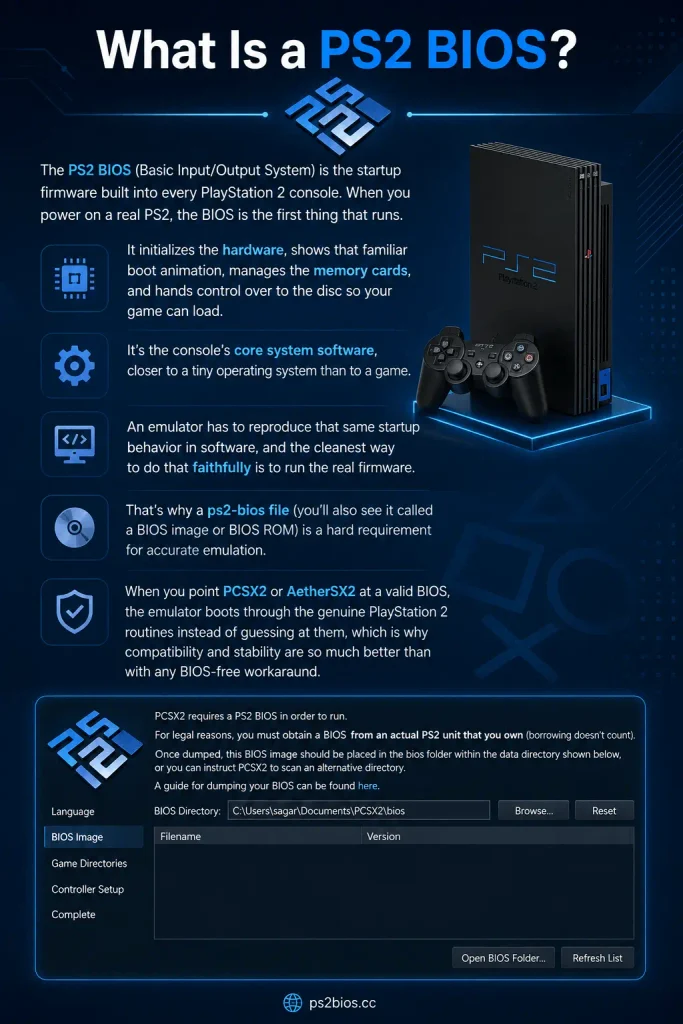
The PS2 BIOS (Basic Input/Output System) is the startup firmware built into every PlayStation 2 console. When you power on a real PS2, the BIOS is the first thing that runs.
It initializes the hardware, shows that familiar boot animation, manages the memory cards, and hands control over to the disc so your game can load.
It’s the console’s core system software, closer to a tiny operating system than to a game.
An emulator has to reproduce that same startup behavior in software, and the cleanest way to do that faithfully is to run the real firmware.
That’s why a ps2-bios file (you’ll also see it called a BIOS image or BIOS ROM) is a hard requirement for accurate emulation.
When you point PCSX2 or AetherSX2 at a valid BIOS, the emulator boots through the genuine PlayStation 2 routines instead of guessing at them, which is why compatibility and stability are so much better than with any BIOS-free workaround.
Key Features of the PS2 BIOS
Pulling those responsibilities together, these are the core features the firmware provides:
Hardware initialization at startup
It initializes the console’s internal components in the correct sequence each time the system starts, creating the same startup environment that an emulator needs to reproduce before a game.
Disc verification and security
The BIOS checks and authenticates game discs before they run, the same integrity step the original hardware performed. In emulation this is part of why running the genuine firmware yields more faithful.
Memory card access and save handling
It controls how the console reads, manages, stores, and writes save data on the memory card. This ensures that saved games are handled correctly, while accurate memory card functionality and reliable save performance in an emulator.
Regional format support
It contains the regional system logic required for NTSC-U, PAL, and NTSC-J formats, which is why selecting a BIOS that matches your game’s region can be so important for proper compatibility and reliable gameplay.
Why Emulators Like PCSX2 Need a BIOS
Emulation is only as good as its fidelity to the original hardware, and the BIOS is a big part of that fidelity. When PCSX2 boots through a real PS2 BIOS, it inherits the exact startup sequence, timing, and region handling of a genuine console.
That’s why BIOS-based emulators achieve the high compatibility rates they’re known for.
A handful of emulators (Play! is the usual example) include a high-level BIOS emulation that lets them run without a real firmware file. It’s convenient, but it comes at a cost: lower compatibility and more glitches on demanding titles, because software guessing at the BIOS’s behavior never quite matches running the real thing.
For anything beyond casual use, a genuine BIOS is the reliable path, and it’s mandatory for PCSX2 and AetherSX2 regardless.
PS2 BIOS vs PS2 ROM: What’s the Difference?
This is one of the most confused points for newcomers, partly because people search for “ps2 bios rom” as if the two were the same thing. They aren’t, and mixing them up leads to a lot of wasted downloads.
PS2 BIOS
The PS2 BIOS is the console’s system firmware. There’s one BIOS (per region/model) and it runs the machine itself. It doesn’t contain any game.
Anology: The engine that starts the console.
PS2 ROM
A PS2 ROM, more accurately called an ISO, is a copy of an individual game disc. God of War, GTA San Andreas, and Final Fantasy X are each a separate ISO.
Anology: The game disc you load after the console boots.
The relationship is simple once it clicks: the BIOS is what boots the virtual console, and the ISO is what you load into that booted console to play.
Without a BIOS, most emulators won’t start at all; without an ISO, the emulator boots to the PS2 menu but has no game to run. They serve completely different purposes and are not interchangeable.
PS2 BIOS Regions and SCPH Models
The playstation2 bios shipped worldwide, and its BIOS came in regional variants matched to each area’s video standard and game format.
Picking the right region matters, so here’s how they break down. Every variant is identified by an SCPH model number, which is the code printed on the console and baked into the BIOS.
|
USA (NTSC-U) |
Japan (NTSC-J) |
Europe (PAL) |
China (NTSC-C) and Other Regions |
|
Region: North America (USA and Canada) |
Region: Japan and much of Asia |
Region: Europe, Australia, and parts of Asia |
Region: Mainland China and related territories |
|
Video format: NTSC (60Hz, 480 lines) |
Video format: NTSC (60Hz, 480 lines) |
Video format: NTSC-C (60Hz, 480 lines); some territories use PAL |
Video format: NTSC-C (60Hz, 480 lines); some territories use PAL |
|
Common models: SCPH-39001, SCPH-70012 |
Common models: SCPH-10000, SCPH-18000 |
Common models: SCPH-50003, SCPH-75004 |
Common models: SCPH-70000 series |
|
Notes: Widely used BIOS with strong NTSC-U support and documentation. |
Notes: Separate 60Hz NTSC region required for Japanese games. |
Notes: Required for PAL games, which run at 50Hz and may feel slower than NTSC versions. |
Notes: The least common variant, but the correct choice for region-specific Chinese releases. |
NTSC vs PAL for Emulation
If you have a choice, NTSC (60Hz) is generally the smoother experience in emulation. Many PAL releases were 50Hz ports that ran a touch slower and sometimes had letterboxing. Where a game shipped in both, the NTSC version is often the better one to emulate. Even so, always match your BIOS region to the game’s region first, because a region mismatch causes its own set of problems (covered below).
Which BIOS Version Should You Use?
The short, accurate answer is the one most “best ps2 bios” searches are really after: there is no single best BIOS.
The best one is the version that matches your game’s region. Many PS2 games are region-locked, so a title made for Japan may misbehave when booted with a European or American BIOS.
Matching the region gives you cleaner boots, fewer glitches, and behavior that mirrors a real console, because the emulator is running the firmware that game expects.
That said, if you genuinely don’t know a game’s region or want one general-purpose option, the NTSC-U (USA) BIOS is the safest default:
- It’s compatible with the majority of PS2 titles, especially English-language releases.
- Nearly every tutorial and emulator preset is written around it, so help is easy to find.
- It performs well on both PC and Android with minimal regional glitches.
You can also keep several BIOS versions in your emulator’s BIOS folder and switch between them per game.
That’s completely safe and is exactly what experienced users do. It lets you match any game’s region on demand and resolves the occasional stubborn boot error.
Is It Legal to Download a PS2 BIOS?
This deserves a straight answer, because a lot of pages blur it. The PS2 BIOS is copyrighted firmware owned by Sony.
In most countries, downloading it from a random site is copyright infringement, no matter how the site frames it, and that includes sites dressed up as a “verified BIOS archive” or an “official pack.” The file being freely available somewhere doesn’t make copying it legal, and those download pages are exactly the ones that get hit with takedowns.
The one method that’s actually legal is dumping the BIOS from a PlayStation 2 console you own.
You’re extracting firmware from your own hardware for your own use, which is the intended, defensible route, and it’s the method the PCSX2 project itself points users to in its official documentation.
It also gives you a cleaner result: a BIOS that exactly matches a real console, with the matching .nvm settings, and no risk of malware bundled into a sketchy download.
Why Download BIOS Files From Our Website?
We make it easy to download safe, authentic, and emulator-ready BIOS files. Every file is verified, regularly updated, and optimized for a smooth gaming experience.
Trusted and Verified Files
All BIOS files are checked before publishing to ensure they’re genuine, clean, and free from malware or corrupted data.
BIOS Files for All Regions
Download BIOS files for NTSC-U (USA), PAL (Europe), NTSC-J (Japan), and NTSC-C (China) from one convenient place.
Compatible with PCSX2 & AetherSX2
Our BIOS files work seamlessly with the latest versions of PCSX2 and AetherSX2, ensuring quick setup and broad game compatibility.
Stable and Smooth Performance
Using verified BIOS files helps reduce errors, improve stability, and deliver smoother gameplay across supported PS2 titles.
Fast and Secure Downloads
Enjoy high-speed downloads from reliable servers with files that are checked for safety before they’re published.
Easy Setup Guides
Our beginner-friendly tutorials help you configure BIOS files with PCSX2 and AetherSX2 in just a few simple steps.
Regular Updates
We keep our BIOS files and setup guides updated to ensure compatibility with the latest emulator versions while supporting older releases as well.
Best PS2 Emulators That Support PS2 BIOS
Before setup, it helps to know which emulator fits your platform, since your BIOS works across all of them. Here are the ones worth considering, with an honest read on where each stands today.
PCSX2 (best for Windows, Mac, and Linux).
The most mature and widely used PS2 emulator, actively developed and open source. It has the highest compatibility, extensive settings, and strong upscaling that pushes visuals well past the original console. It requires a real BIOS and is the natural first choice on a computer.
AetherSX2 (the established Android option).
For a long time the standout PS2 emulator on Android, based on PCSX2 and capable of excellent performance on capable phones. Its sole developer (Tahlreth) suspended development in January 2023 after harassment and death threats, and the app was pulled from the Play Store in March 2024.
It still runs well, but since it’s unmaintained, install it from a trusted source and watch for ad-injected fakes. Most Android users have now moved to NetherSX2, an actively maintained fork that removes the ads and adds newer PCSX2 improvements.
RetroArch (multi-system, good for iOS).
A front end that runs many consoles through cores, including a PCSX2-based core for PS2. The practical route on iPhone, where standalone PS2 emulators are scarce. Install it from the App Store, add the PCSX2 or Play! core, and set your BIOS through Settings, then Directory, then System/BIOS. iPhone 13 and newer handle it well.
Play! (BIOS optional, casual use).
A cross-platform emulator (Windows, Mac, Android, iOS) with high-level BIOS emulation, so it can run without a real firmware file. That lowers the setup barrier, but compatibility is weaker than PCSX2 and demanding games may glitch or fail.
DamonPS2 (proceed with caution).
An Android emulator that runs a fair number of games, but one the community broadly advises against because of aggressive ads, paywalled features, and past controversy over its handling of open source code.
How to Set Up PS2 BIOS On PC (PCSX2 Emulator)
With a verified ps2 bios in hand, PCSX2 setup is quick.
What You Need First:
PCSX2 needs a 64-bit OS and CPU with SSE4.1 support (AVX2 recommended), plus a GPU that handles Vulkan, Direct3D, or Metal. Single-thread CPU speed matters most, since PS2 emulation is largely single-threaded, so lag often traces back to hardware, not settings.
- PCSX2 installed from our site. Download it, unzip, and run the pcsx2-qt (or pcsx2) executable.
- Your dumped BIOS files in a folder you can find easily.
Prepare Your BIOS File
Before dumping, format your USB drive as FAT32 with an MBR partition scheme. USB 2.0 drives are strongly preferred, since the PS2 has known compatibility issues with many USB 3.0 sticks. Your finished main .bin should be exactly 4,194,304 bytes (4MB).
Before touching PCSX2, have your BIOS ready. Dump it from your own PS2 using biosdrain via FreeMcBoot or FreeDVDBoot. If your console has a modchip, disable it first, since an active modchip corrupts the dump. Copy the files to your PC, keeping the main scph*.bin alongside its supporting files in one folder.
| File | What it does |
| scph*.bin (ROM0) | The main BIOS. Handles the core startup sequence, hardware initialization, and boot logic. This is the essential file PCSX2 needs. |
| .rom1 | Holds additional system routines used by the console during operation. |
| .rom2 | Stores hardware-specific routines (notably Chinese/DVD-region support on some models). |
| .erom | Contains extended ROM data, including DVD player components on many models. |
| .nvm | Non-volatile memory. Preserves system settings such as language, region, and clock configuration. |
| .mec | Small companion file storing BIOS metadata used during boot. |
Import and Configure the BIOS in PCSX2
There are two ways to import and set up the BIOS in PCSX2. Both work; use whichever fits where you are in the process.
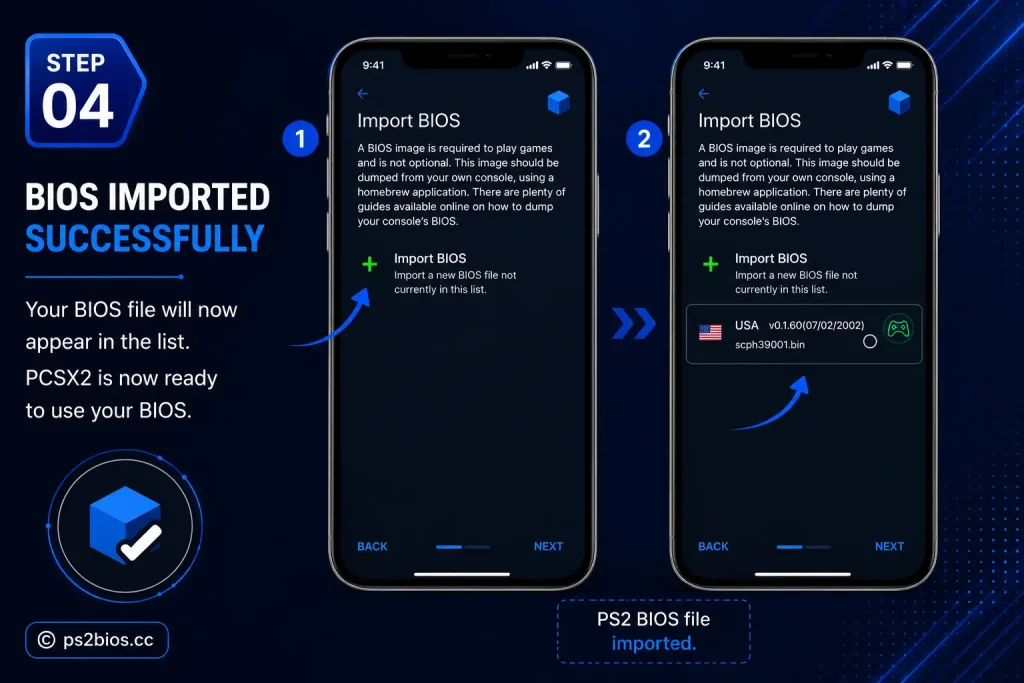
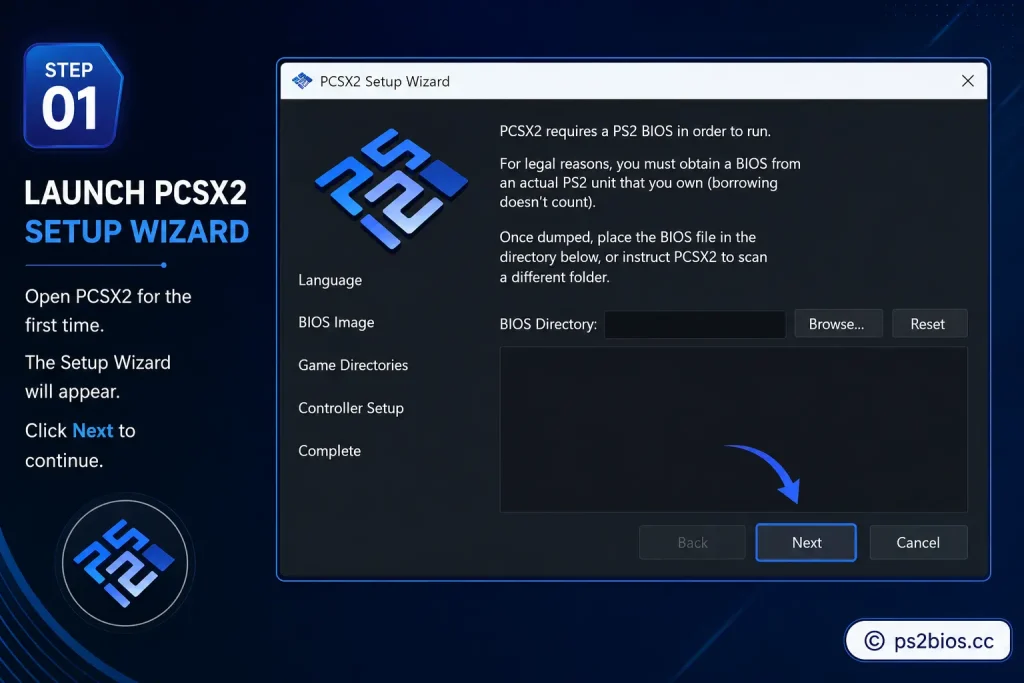
Method 1: During first-run setup.
- Launch PCSX2 for the first time.
- Select your language and click Next to move through the setup wizard.
- You’ll reach the BIOS Directory step.
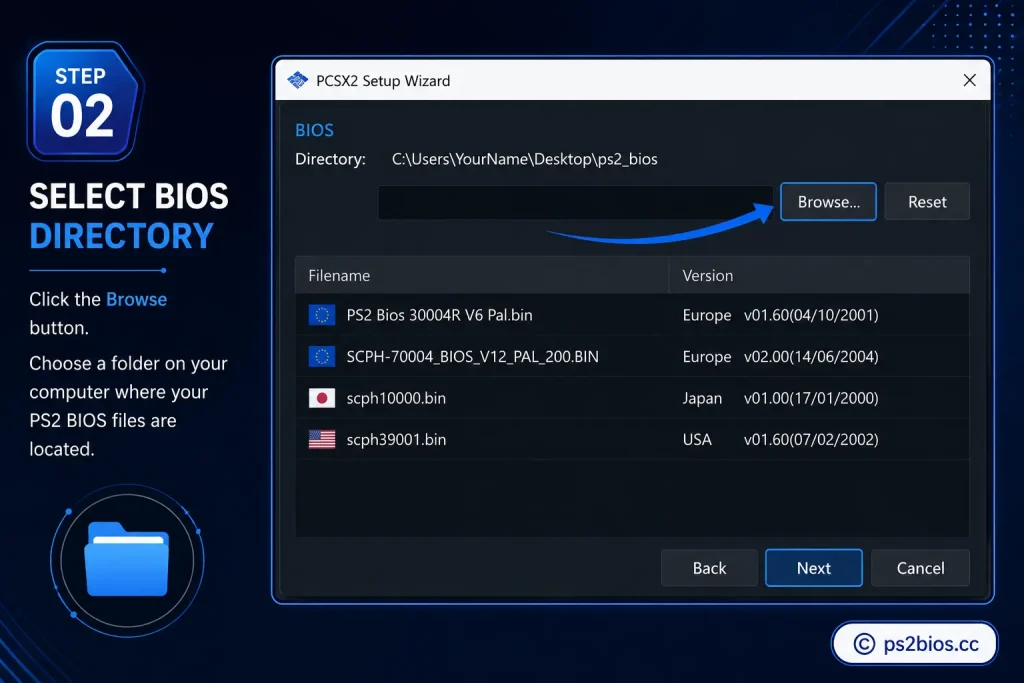
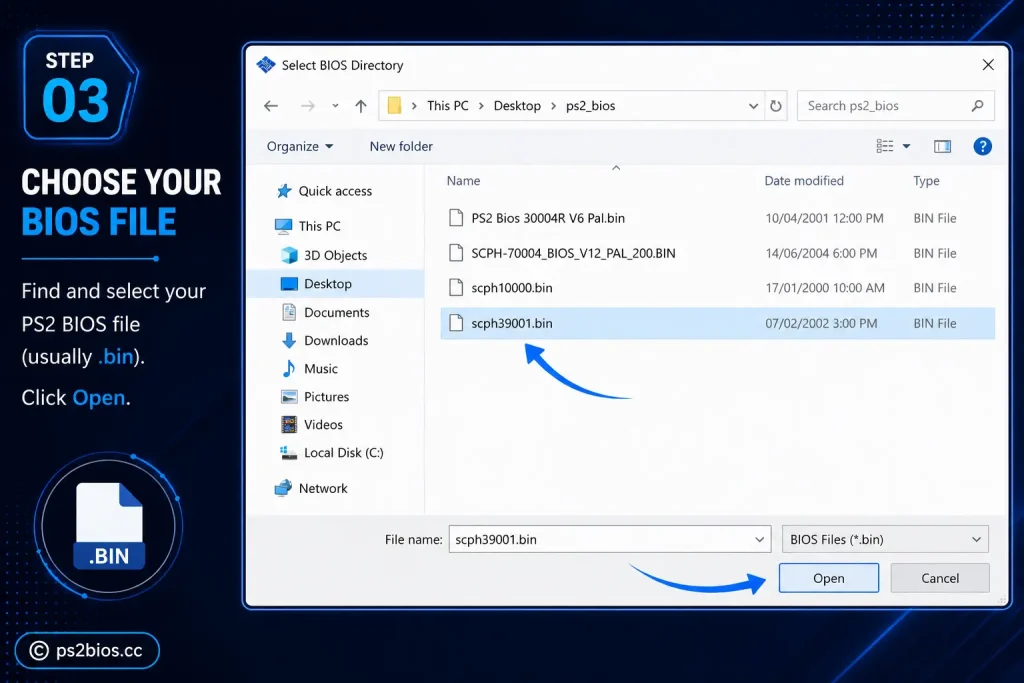
- Click Browse, open the folder holding your .bin file, and select it.
- PCSX2 lists every valid BIOS it detects in that folder. If you kept multiple regions, they all appear here.
- Pick your preferred version, click Next, and the BIOS is imported and configured.
Method 2: After the emulator is already running.
This second method works any time after PCSX2 has launched, so it’s the one to use when you want to add or change a BIOS later.
- Launch PCSX2.
- Go to Settings.
- Click BIOS.
- On the BIOS page, click Browse and import your BIOS file.
This option lets you import a BIOS whenever you like, and you can add a single region or point it at a folder holding several.
How to Set Up the BIOS on Android (AetherSX2)
Android emulation is where accuracy matters most, because there’s a lot of stale advice online “download AetherSX2” results with care and stick to sources the emulation community trusts.
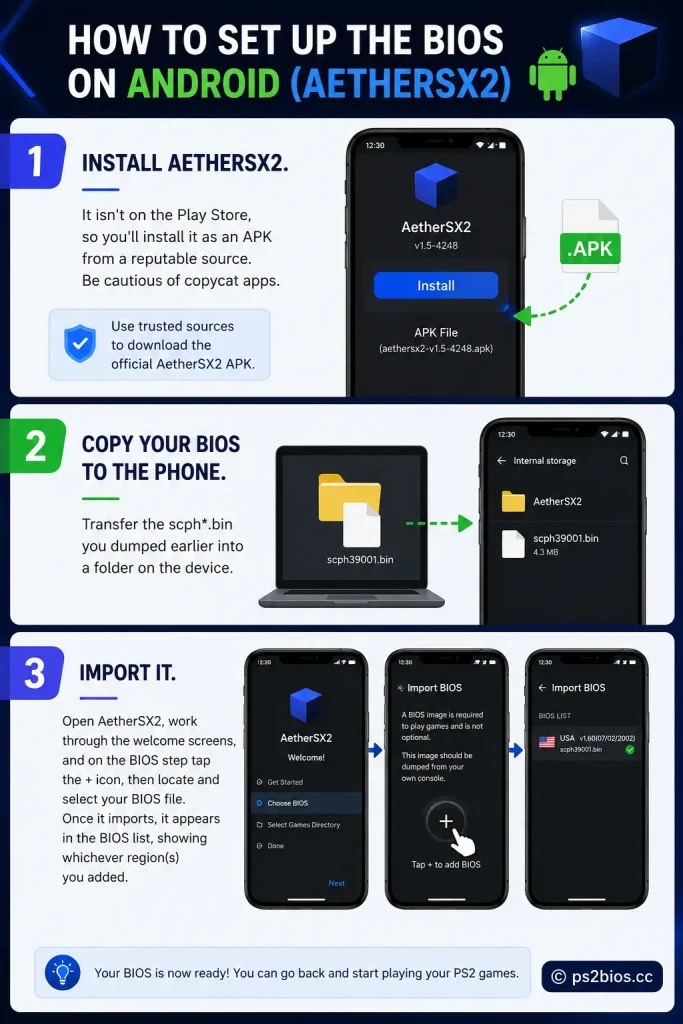
Install AetherSX2.
It isn’t on the Play Store, so you’ll install it as an APK from a reputable source. Be cautious of copycat apps.
Copy your BIOS to the phone.
Transfer the scph*.bin you dumped earlier into a folder on the device.
Import it.
Open AetherSX2, work through the welcome screens, and on the BIOS step tap the + icon, then locate and select your BIOS file. Once it imports, it appears in the BIOS list, showing whichever region(s) you added.
Common PS2 BIOS Errors and How to Fix Them
Most BIOS-related problems fall into a handful of buckets. Here’s what causes each and how to clear it.
“BIOS Not Found” / “No BIOS Found.”
The emulator can’t see a valid BIOS. Confirm the file is in the designated BIOS folder, the path is set correctly, and it’s extracted, not still zipped in a .zip or .rar.
Once detected, check the status icon. Green means loaded. Red means renamed, corrupt, or incomplete.
Black screen after loading a game.
Usually a region mismatch or a bad game ISO. Switch to a BIOS that matches the game’s region, or test a different, known-good ISO to isolate the problem.
Updating the emulator and your GPU drivers clears up a lot of these too.
Region mismatch.
When the BIOS region (NTSC-U, PAL, NTSC-J) doesn’t match the game, you get compatibility hiccups or wrong-speed playback.
The fix is exactly what it sounds like: use a BIOS from the same region as the game.
Lag or stuttering.
Typically hardware limits or overly ambitious settings. Lower the internal resolution/upscale multiplier, switch to the Vulkan renderer, enable speed hacks where available, close background apps, and (on laptops) set High Performance power mode.
Controller not working.
First confirm the device actually sees your controller as a connected input in the OS.
Then open the emulator’s controller config and check the mapping. Run Automatic Mapping, and refresh the config page to make sure the assignment took.
Tips for Better Performance and Compatibility
A grab-bag of habits that keep emulation smooth:
- Keep GPU drivers current on PC, and your system updated on Android.
- Match BIOS and game region every time, since it prevents a whole category of errors.
- Check the official compatibility lists for PCSX2 or AetherSX2 before assuming a game should run perfectly; some titles have known quirks.
- Prefer the Vulkan renderer on most modern hardware.
- Lower the upscale multiplier (say 4x to 2x) the moment a game lags.
- Turn off heavy enhancements such as anti-aliasing and texture filtering on weaker devices.
- Use the correct aspect ratio (usually 4:3 for PS2) to avoid stretched visuals and display bugs.
- Keep BIOS and ISO files organized in clearly labeled folders so the emulator finds them without fuss.
Frequently Asked Questions
Why do I need a PS2 BIOS to play games on PCSX2 or AetherSX2?
Without a BIOS the emulator can’t replicate the console, so PS2 games won’t load.
How do I legally get or dump a PS2 BIOS?
Dump it from a PS2 you own using a homebrew tool like biosdrain; that’s the only legal method.
Which BIOS version should I download?
Match your game’s region: NTSC-U (USA), PAL (Europe), or NTSC-J (Japan).
What’s the difference between NTSC and PAL PS2 BIOS?
NTSC runs at 60Hz (USA/Japan) and PAL at 50Hz (Europe/Australia), which affects game speed.
How do I know which SCPH model to use?
Pick the SCPH model matching your game’s region, e.g. SCPH-39001 (USA), SCPH-10000 (Japan), SCPH-50003 (Europe).
What file format does PCSX2 need for the BIOS?
The main scph*.bin file, with optional .nvm, .rom1, .rom2, .mec, and .erom kept alongside it.
Can I use multiple PS2 BIOS files in one emulator?
Yes, keep several regional BIOS files in the folder and switch between them per game.
Why does my emulator say “BIOS not found”?
The file is missing, in the wrong folder, or still zipped; extract it and set the correct BIOS path.
What happens if I use the wrong region BIOS?
You may get crashes, black screens, or a game that won’t load, since many titles are region-locked.
Can I use the same BIOS on both PC and Android?
Yes, the same dumped BIOS works on PCSX2 and on AetherSX2 or RetroArch.
Conclusion
A PS2 BIOS is the one piece that turns an emulator into a convincing PlayStation 2.
It boots the system, handles regions, manages saves, and keeps everything stable while you play. Get that piece right and the rest falls into place quickly.
The route worth taking is the legitimate one: dump the BIOS from a console you own with a tool like biosdrain, verify it against the ReDump project’s SHA1 hash list to confirm a clean dump, match it to your game’s region, and point PCSX2 or AetherSX2 at it.
It’s a little more effort than grabbing a random download, but you end up with a genuine, malware-free, console-accurate file, and a setup that’s stable, legal, and built to last.
Do that once, dial in your settings, and your PS2 library is ready whenever you are.